MWOS Zambia Registration: Create Your Account & Solve Signup Problems
Create your MWOS Zambia account using your own mobile number, then complete the profile you will use for deposits, withdrawals and support. This walkthrough covers the signup fields, activation issues, existing accounts and the details MWOS needs when a problem requires a support ticket.
Use the Zambia account and your own number
MWOS operates in more than one country. Start from the Zambia service at betting.co.zm and check the +260 country prefix. A familiar logo on a Zimbabwe or Malawi page does not establish that you are opening the Zambia account you want. Keep the Zambia address bookmarked after signup.
Have your SIM, a working email address for support correspondence and your identification details ready. Use your own number and the name shown on your ID. Keep access to that SIM because a later password reset may need a code sent to it.
MWOS registration steps
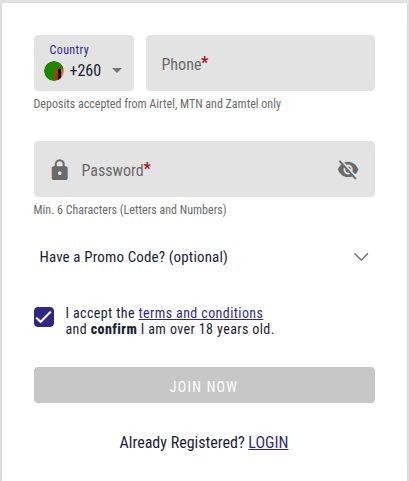
- Open MWOS with the registration button and select Join or Register.
- Check +260 and enter your mobile number in the format shown.
- Create a password that meets the instructions on the form.
- Enter a promo code only if you have a valid one to use.
- Read the terms and confirm that you are at least 18.
- Submit Join Now and complete any confirmation requested.
- Once inside, open My Profile and complete the requested personal details.
Choose a password of eight or more letters and numbers within the form’s allowed length. If a field is rejected, use its visible instruction to correct the entry. Phone formatting and a stray space in a pasted password are worth checking before submitting again.
The account may need more details after Join Now
A short signup form and a completed betting profile are separate things. Fill in later personal-detail requests accurately and keep the spelling consistent with your ID and mobile wallet. This gives MWOS a clearer record if it later asks you to verify ownership.
Find your user ID through the person icon and My Profile. MWOS places it beneath the name at the top of the profile page. Save it privately: it helps support distinguish your account from another account with a similar name.
📌 Some advice
Check the profile immediately after signup. Save your MWOS ID and confirm the registered number before moving on to any payment.
Fixing an unsuccessful MWOS signup
No confirmation code or OTP
Check that the number was entered correctly and that the SIM receives SMS. On a dual-SIM handset, check which line is active. Keep the original verification page open, wait for the resend option and request another code when it becomes available. A request and the arrival of its SMS are separate stages.
MWOS’s OTP troubleshooting advises waiting briefly, requesting the code again and contacting support if the problem continues. If a screen offers email delivery, use only the email linked to your account. Record the time and destination type for support; keep the code itself private.
The number is already in use
Try the login/recovery route for an account you already own. If a retail branch helped you open an account previously, ask support to check that record before starting another signup. Tell them the branch and approximate registration date if you know them. Those details can help identify which account needs attention.
Join Now does nothing
Check mandatory fields and the terms box first. Look for an inline error near the phone or password field. If the page appears incomplete, try a current browser outside an in-app window and check your connection. After an interrupted submission, try account recovery before assuming that no account was created.
I entered the wrong details
Correct the form before confirming. If registration has completed, review the profile’s editing options and ask MWOS about fields that are locked. Explain the correction in one message and provide the requested ownership evidence through the official process. A second signup will not correct the first account.
Use the MWOS support ticket properly
MWOS has a support-ticket system as well as its live contact channels. Its form includes email, full name, phone number, MWOS home branch, MWOS ID and a help topic. A valid email is needed to receive and track the correspondence. Include the ID or branch only when relevant and known.
- Choose the topic closest to registration or account access.
- Describe the exact screen and error, with the date and time.
- Say whether the number is yours and whether it can receive ordinary messages.
- Attach a cropped error screenshot with private details hidden.
- Save the ticket number and use it for follow-ups.
For contact assistance, MWOS lists +260 971 263 698 and its live support routes. Ask an agent to check account creation or activation status. A useful request is specific: “Join Now returned [message]; can you check whether my Zambia account exists and which activation step remains?”
Your first steps after registration
Read the full MWOS review for payment and app features, or the MWOS bonus guide for offer qualification. Our MWOS login guide covers password recovery. Wallet walkthroughs are available for Airtel, MTN and Zamtel.
Review the amount and eligible bets before accepting a promotion. Registration does not require placing a bet immediately. Finish account setup and choose a comfortable budget first.
MWOS registration FAQs
🇿🇲 Is a Zimbabwe MWOS guide the same process?
Use the Zambia service and its account instructions. Different national services can have different contact routes, currencies and account records.
🏪 What if I registered through a shop?
Tell support the branch and any existing MWOS ID. Ask them to check that account before opening a new profile.
🆔 Where is my MWOS ID?
After signing in, open My Profile through the person icon. The ID is displayed beneath your name.
📨 Can a support ticket replace phone verification?
A ticket lets support investigate an activation problem. It does not itself complete an OTP step or prove account ownership.